
Step 1: Log into your account.
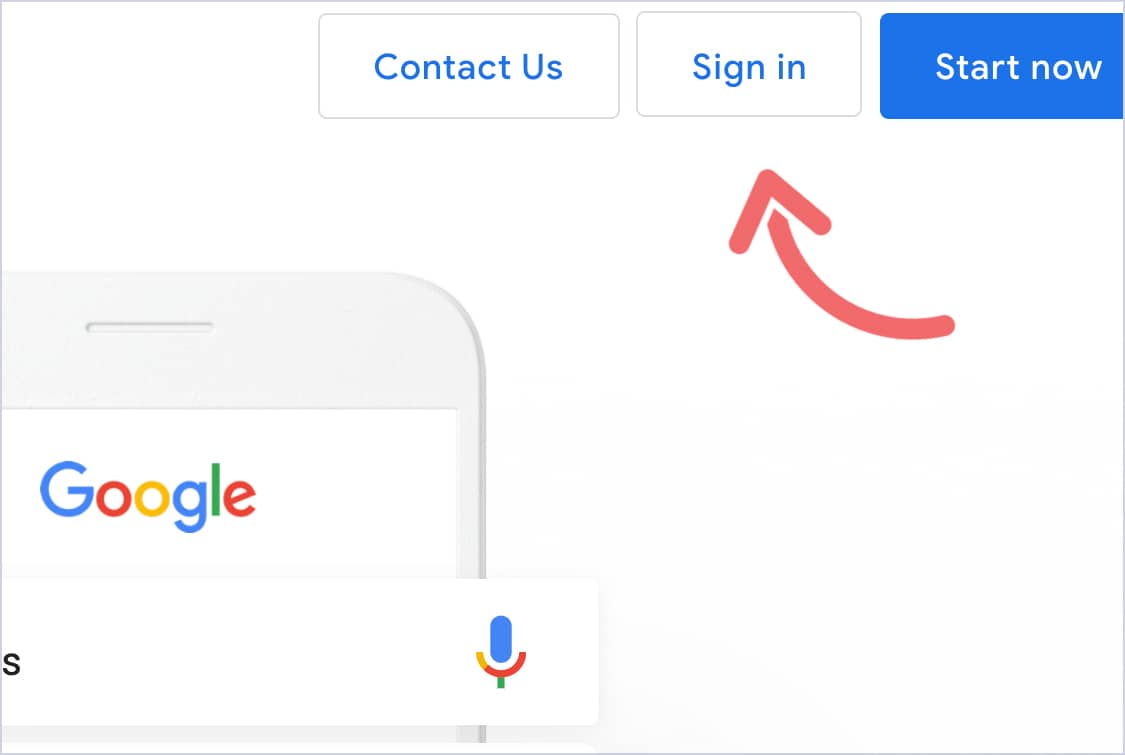
Go to www.google.com/ads and click on the top right button to log in.
Be sure to sign in with the email associated with your account.
This may be different from your work or personal email.
Step 2: Navigate the settings column.
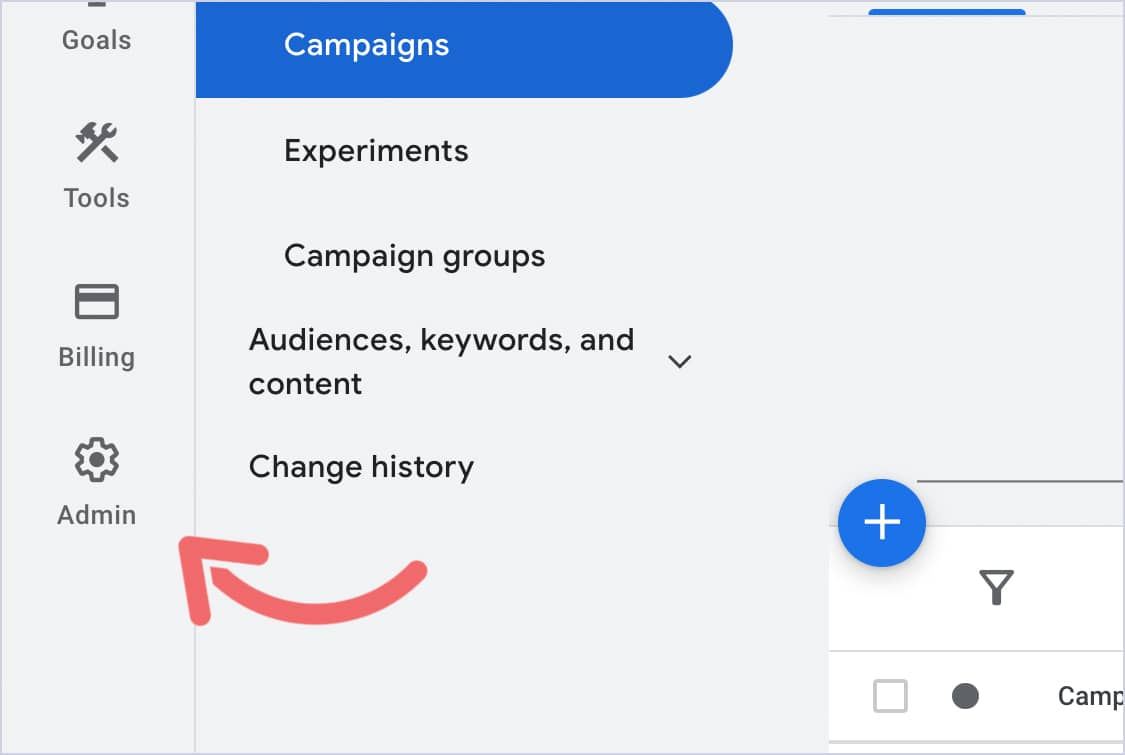
Once you’re signed in, you’ll see the Admin tab on the left side of the page.
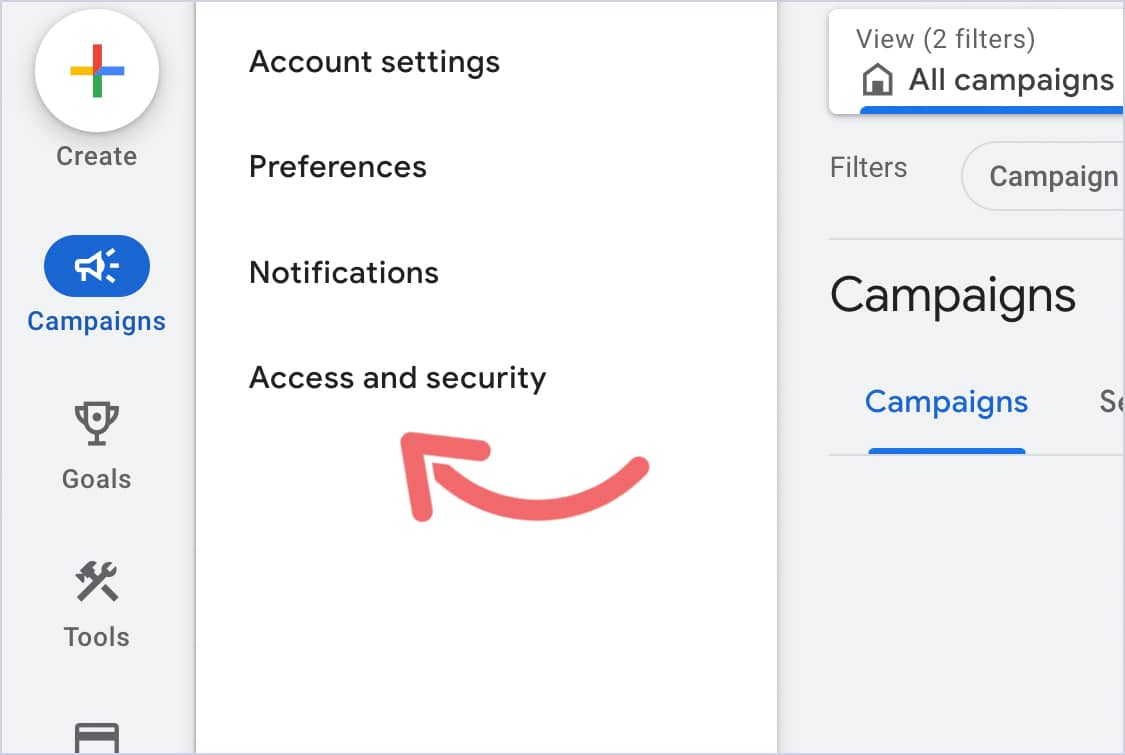
Then, a sidebar will appear.
Click Access and Security.
Step 3: Accept the invite.
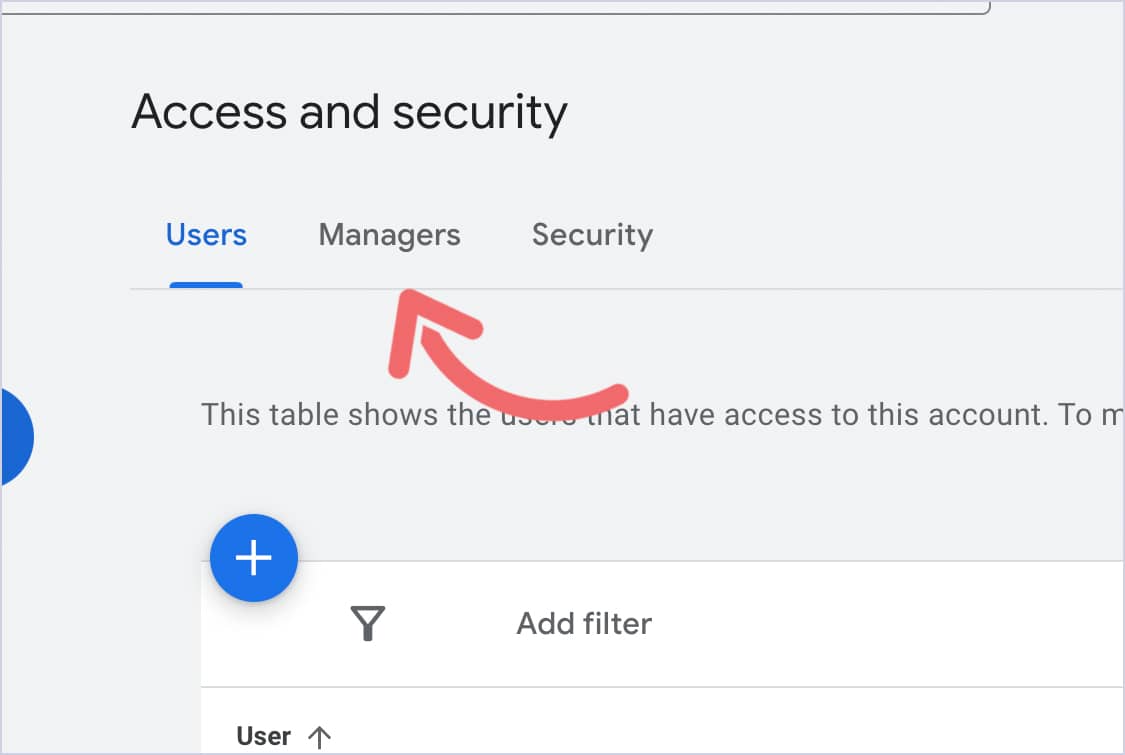
Now, click Managers.
You should see our invite.
Double-check the invite was sent from support@3mediaweb.com.
Once you’ve confirmed that we’ve sent the invite, click Accept.
One last pop-up will appear.
Click Grant Access.
And that’s it! You’re done!
Our team will automatically receive a notification that you’ve accepted the invite.