
Step 1: Start the process.
Go to www.google.com/tagmanager and click on the top right button to begin.

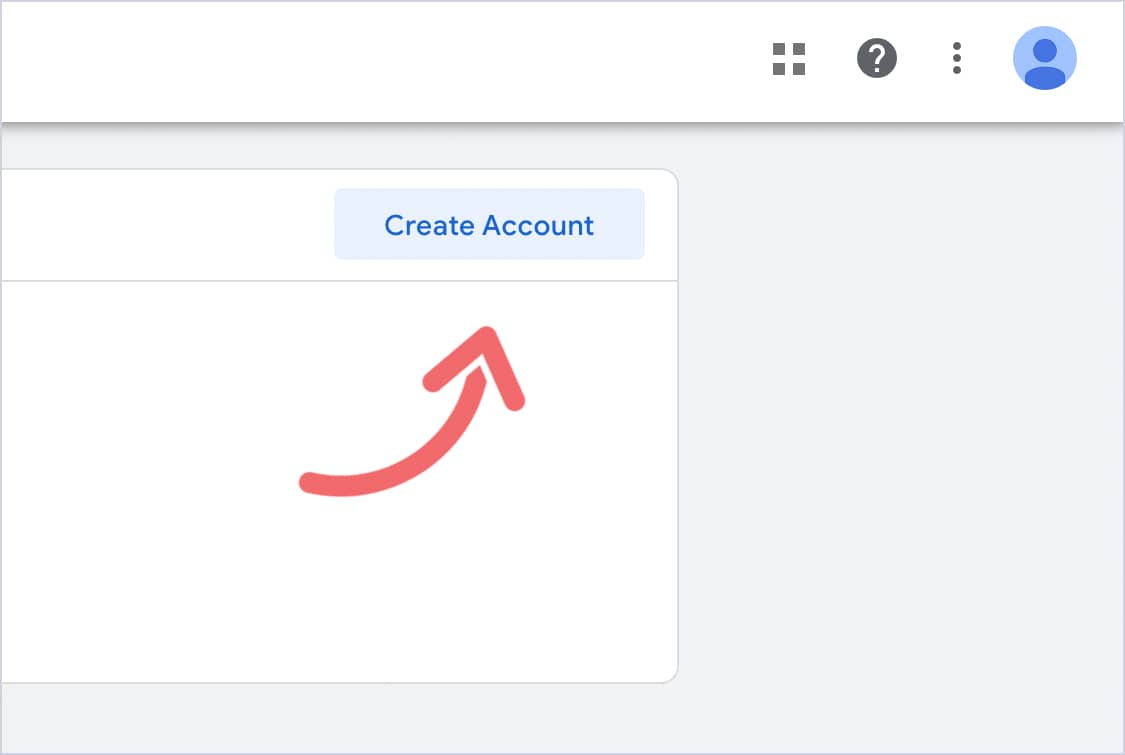
Then, click on Create Account.
Step 2: Setting up your account.
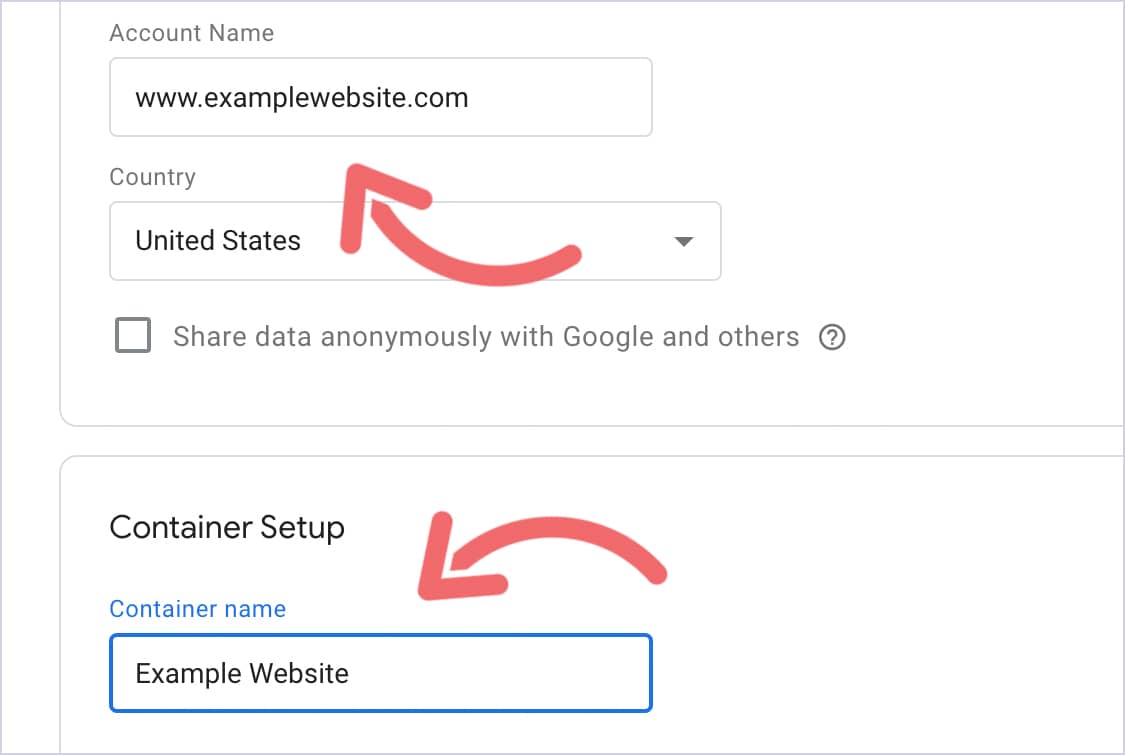
First, under Account Name, add your website.
Then, under Container Setup, add your business name.
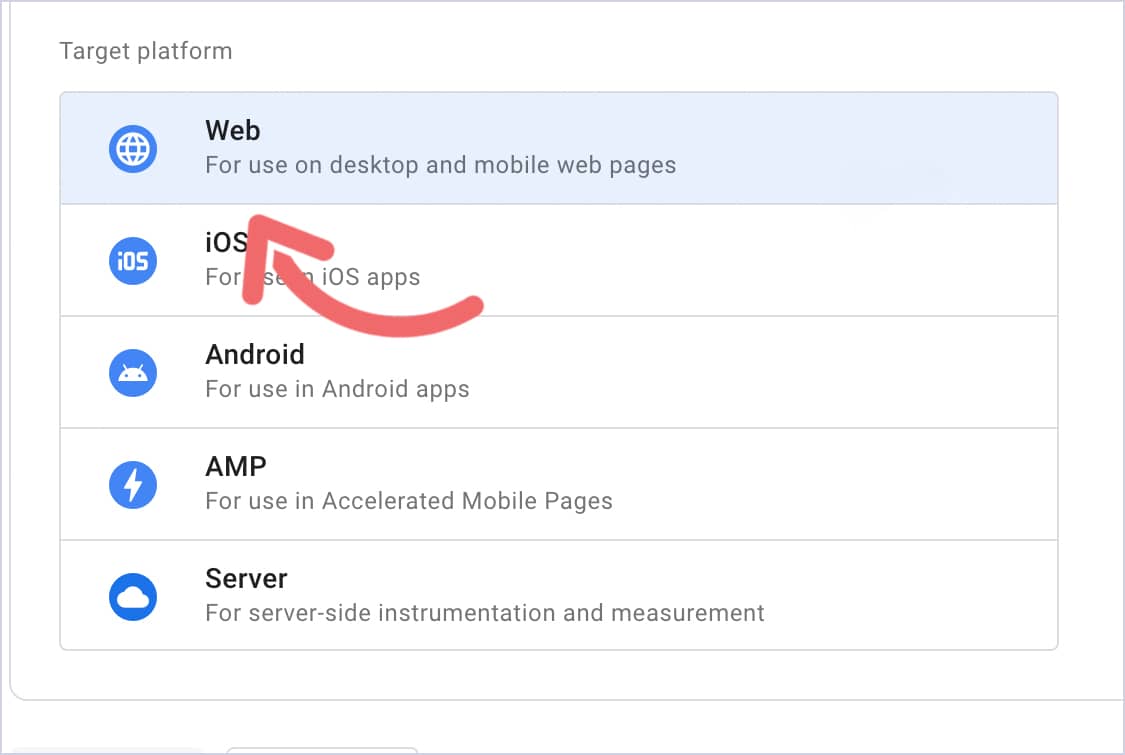
If you keep scrolling, under Target Platform, select Web.
Step 3: The finishing touches.
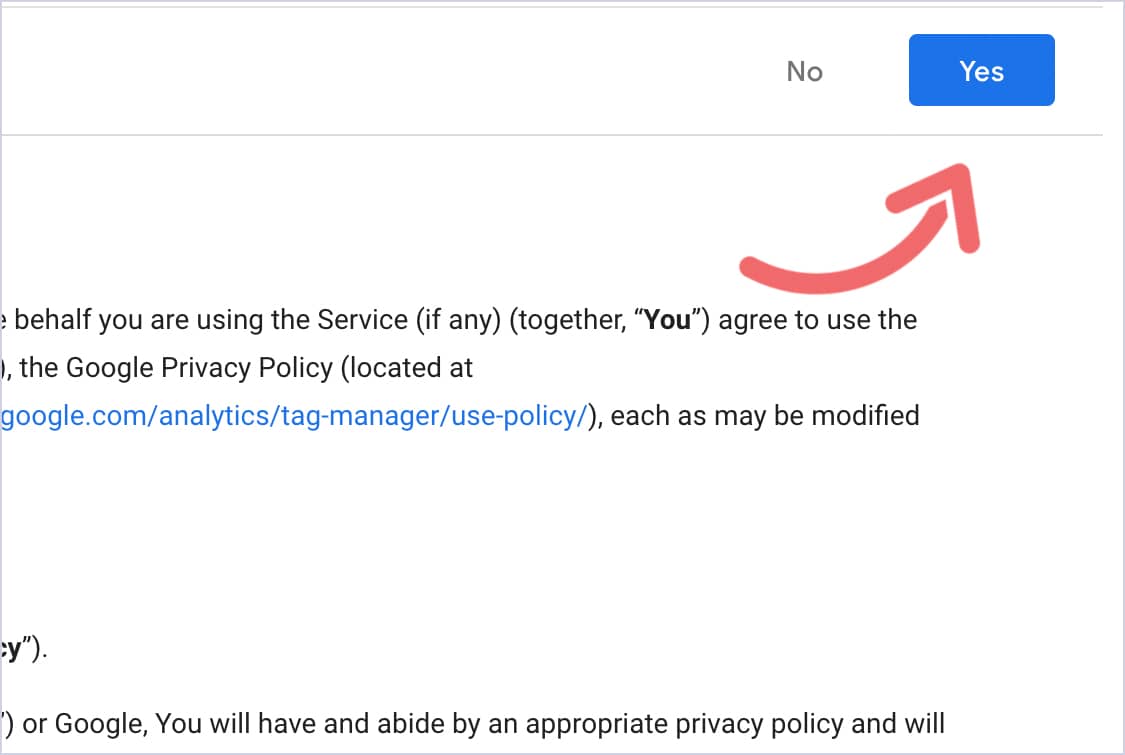
Once your account setup is complete, a pop-up will appear displaying the Terms & Conditions.
Click Yes.
Once you press yes, you’ll get your script to add to your website.
Then, add the script to your website. That’s it. You’re done!