
Granting our team delegate access to your GoDaddy account lets us manage your domains, DNS, and hosting products on your behalf without ever sharing your password. Delegates can open and use the products in your account, but they can’t see or change your payment methods, password, or other account details.
This process takes less than 2 minutes. Follow the steps below and we’ll take it from there.
Good to know: We’ll accept the invitation using our existing GoDaddy account, so there’s nothing for you to set up beyond sending the invite. Invitations expire if they aren’t accepted within 48 to 72 hours, so please let us know once you’ve sent it.
Step 1: Log into GoDaddy
Go to account.godaddy.com/access and sign in if prompted.
Be sure to sign in with the account that owns your domains or hosting. This may be different from your work or personal email.
Step 2: Open Delegate Access
If you weren’t taken there directly, click your name in the top-right corner, choose My Profile, and then select Delegate Access from the left-hand menu.
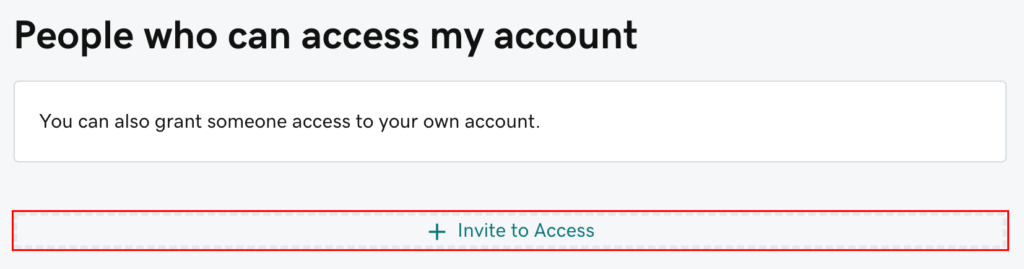
You’ll land on a page with a section called People who can access my account.
Step 3: Invite Our Team
In the People who can access my account section, click Invite to Access.
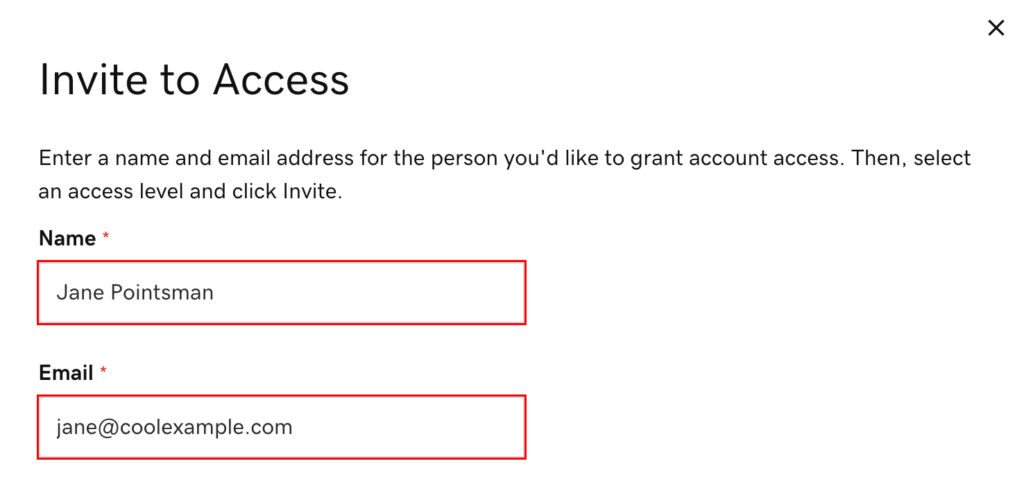
Fill in the invitation form:
- Name: 3 Media Web
- Email: the email address our team provides to you
Step 4: Choose an Access Level
GoDaddy will ask you to pick an access level. Select Products & Domains.
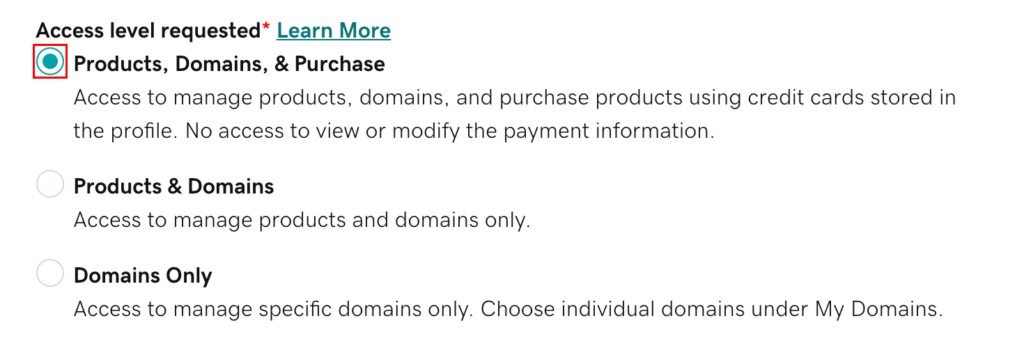
Why Products & Domains? This level lets our team manage your domains, DNS records, and hosting products, which is everything we need to launch and maintain your website. It does not let us make purchases, view your order history, change your password, or invite anyone else to your account. We only make changes we’ve discussed with you first.
If you’d like us to be able to renew domains or purchase products on your behalf using your stored payment method, choose Products, Domains, & Purchase instead. Otherwise, Products & Domains is the right choice for most clients.
Step 5: Send the Invitation
Click Invite.

GoDaddy will email the invitation to our team. Once we accept, GoDaddy will notify you, and the invitation will show as Pending in your Delegate Access list until then.
You’re All Set!
Once we’ve accepted the invitation, our team will be in touch to confirm access and discuss next steps.
You stay in full control: you can change our access level or remove our access from the Delegate Access page at any time. If you run into any trouble, don’t hesitate to reach out to us at support@3mediaweb.com and we’ll be happy to walk you through it.
Source: This guide is adapted from GoDaddy’s help article Invite a delegate to access my GoDaddy account. Screenshots are courtesy of GoDaddy and may differ slightly from what you see in your account.