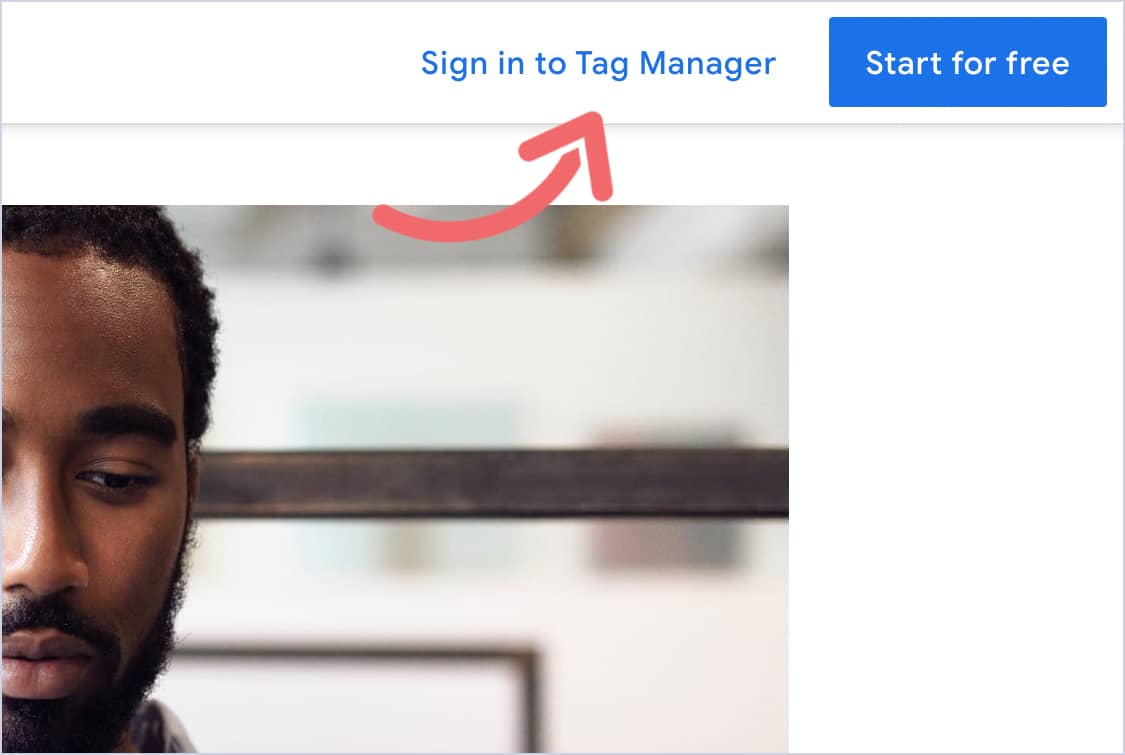
Step 1: Log in to your account.
Go to www.google.com/tagmanager and click on the top right button to log in.
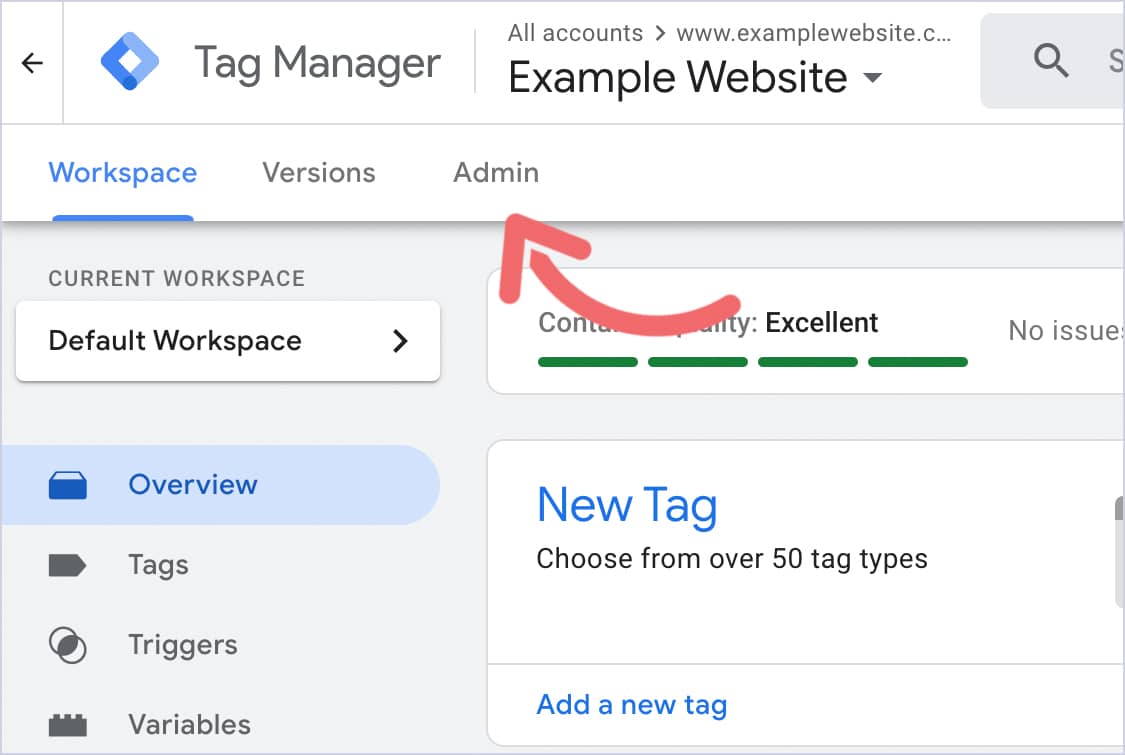
Step 2: Go to your admin settings.
On the top left of the page, click on Admin.
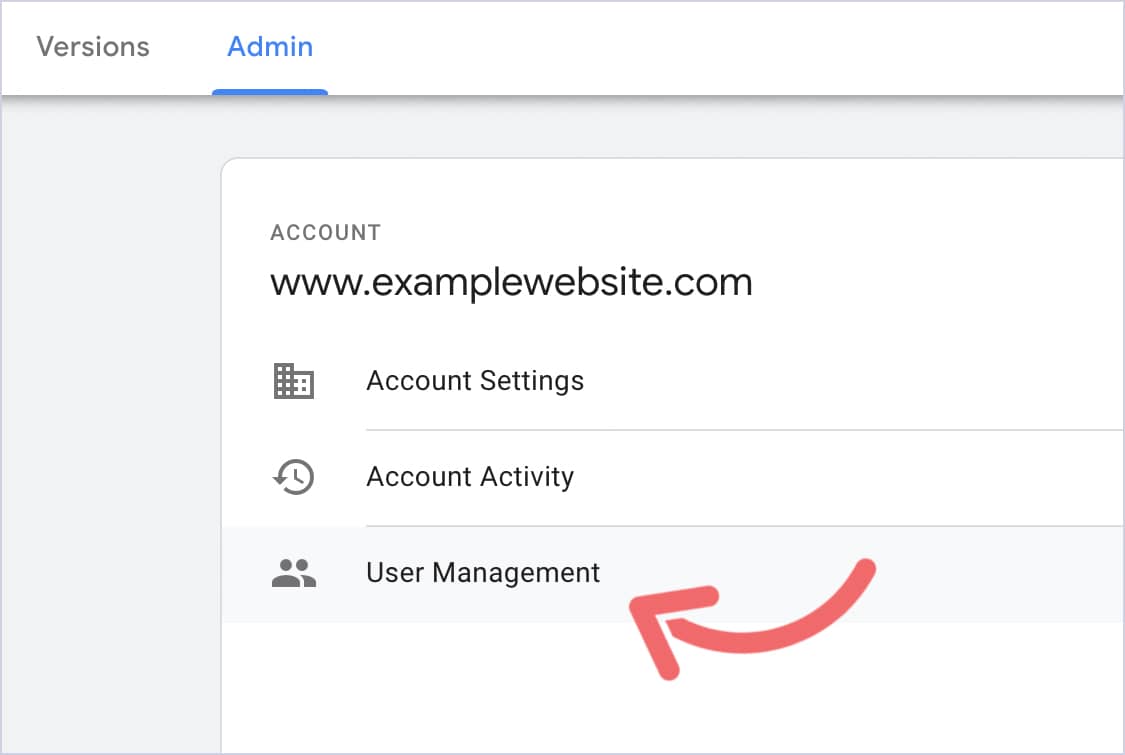
Step 3: Go to user management.
You’ll see two columns. Account and Container.
Click on User Management under Account.
A sidebar will appear on the right side of the page.
Step 4: Add a new user.
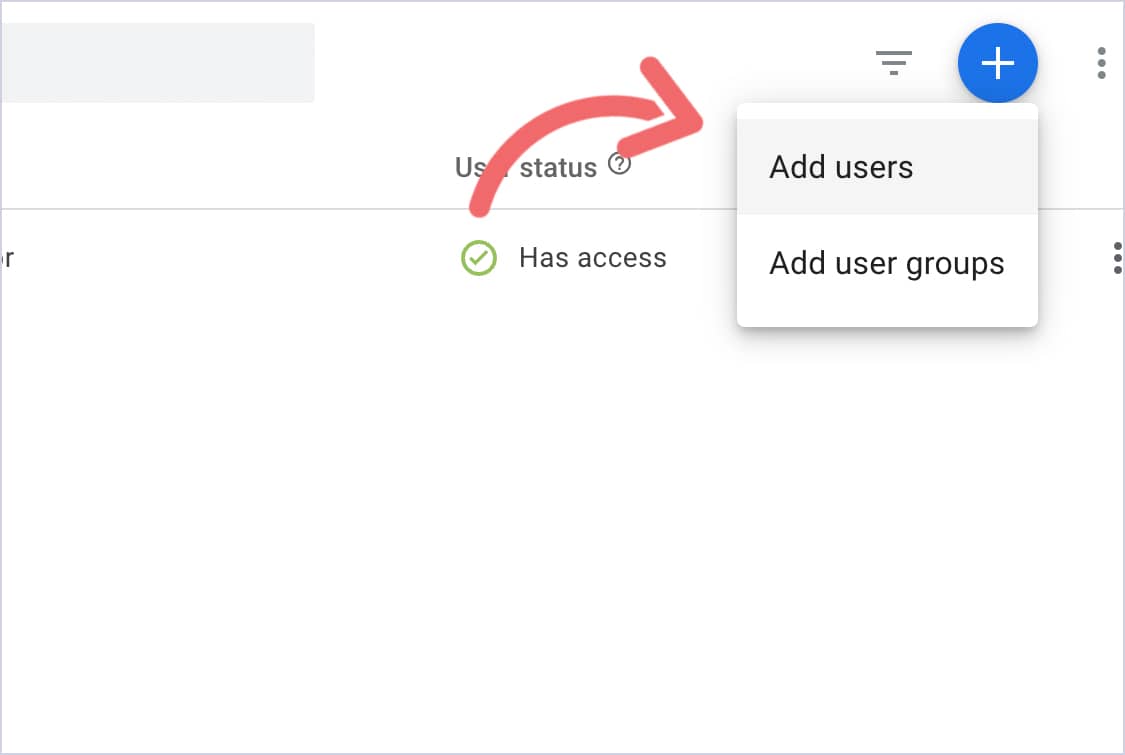
Now click on the blue circle button on the top right.
Then, click Add Users.
Step 5: Adjust user access.
First, you’ll need to type in the email address of the user you want to give access to.
Please give access to support@3mediaweb.com.
Now, make sure to select both options for Administrator and User.
Then, under Account Permissions, select Read.
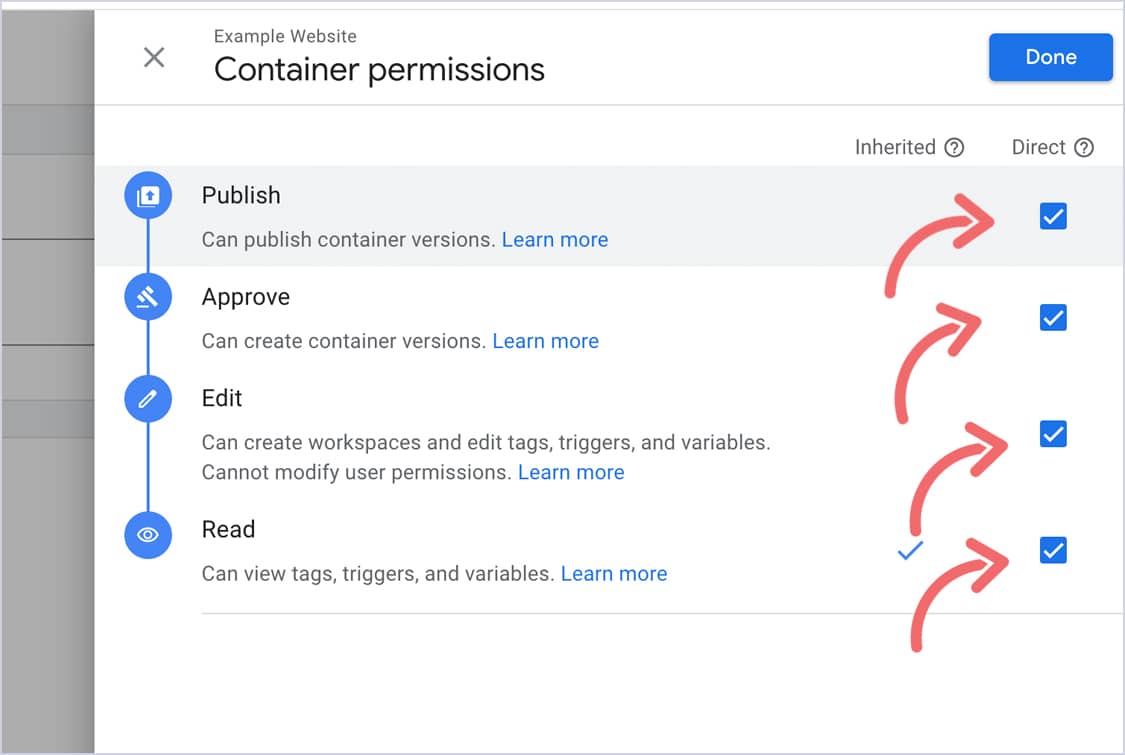
A sidebar will appear on the right side of the page.
After all four options have been selected, click on Done.
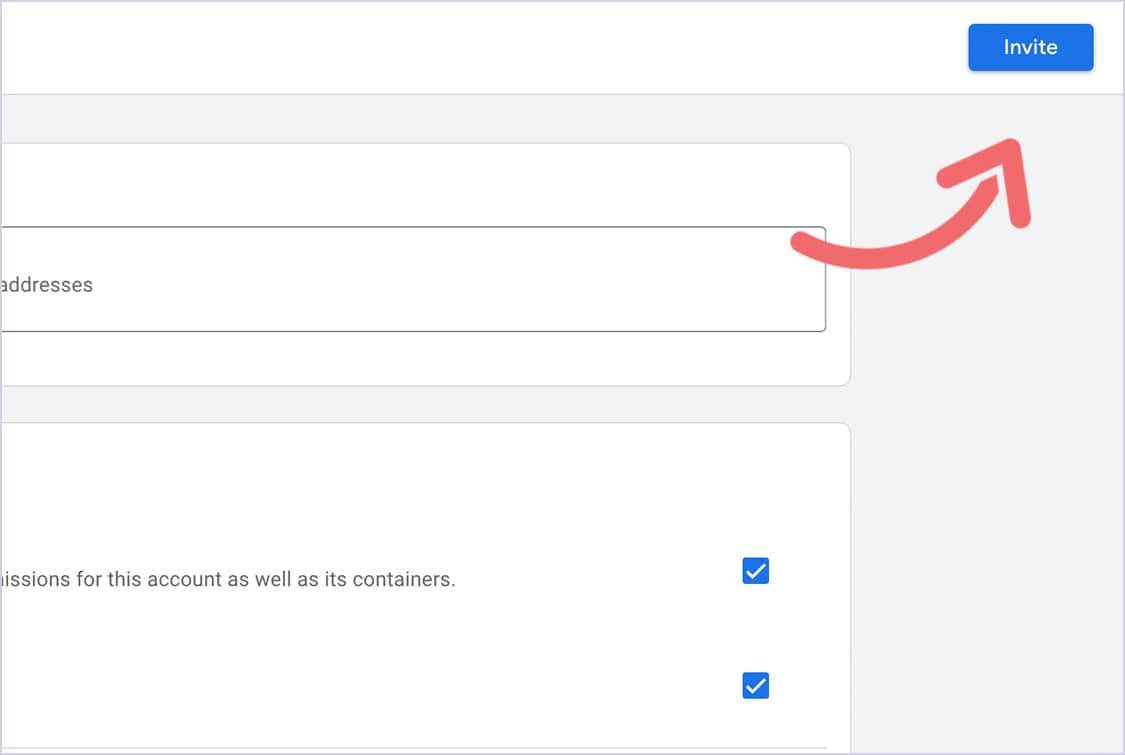
Now, click Invite. And that’s it. You’re done!
We’ll receive a notification.