
Granting our team access to your Google Search Console account allows us to monitor your website’s search performance, identify indexing issues, and help improve your visibility in Google search results.
This process takes less than 2 minutes. Follow the steps below and we’ll take it from there.
Step 1: Log into Google Search Console
Go to search.google.com/search-console and sign in with the Google account that owns your website property.
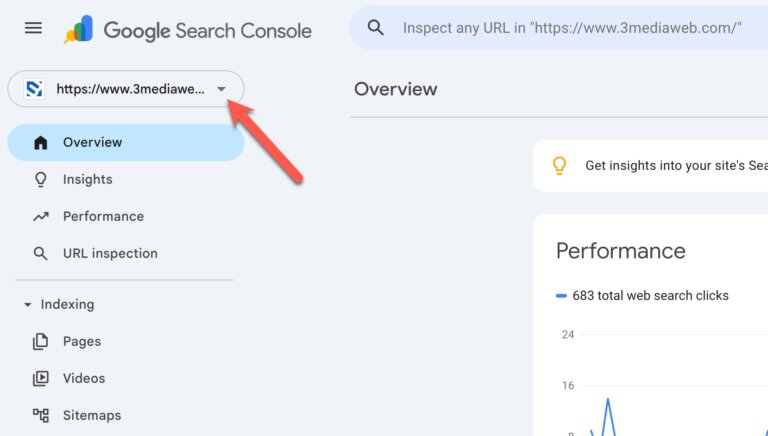
Once logged in, make sure you’ve selected the correct property (website) from the property selector in the top-left corner.
Step 2: Open Settings
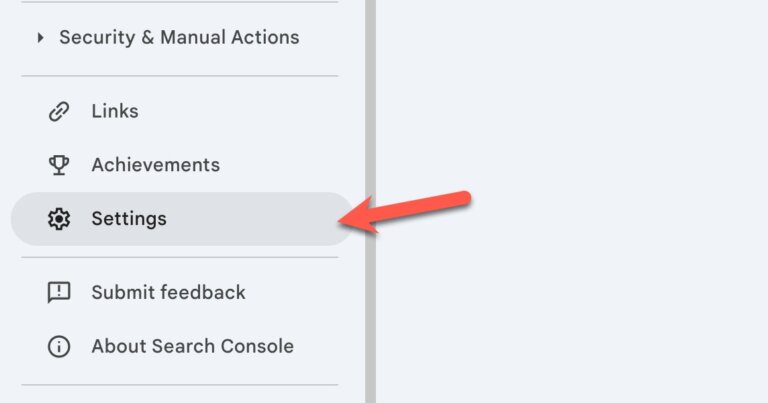
In the left-hand navigation menu, scroll down and click Settings.
Step 3: Open Users and Permissions
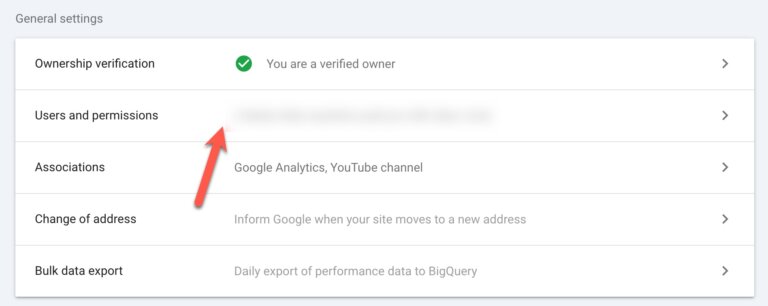
Inside Settings, click Users and permissions.
Step 4: Add a New User
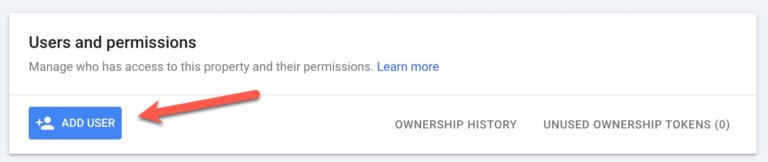
Click the Add User button in the top-right corner of the Users and permissions panel.
Step 5: Grant Our Team Access
In the Email address field, enter: [email protected]
Under Permission, select Full.
Why Full access? Full access allows our team to view all search performance data, submit sitemaps, request indexing for new pages, and diagnose any crawl or coverage issues on your site. We only make changes we’ve discussed with you first.
Click Add to save.
You’re All Set!
Once you’ve completed these steps, our team will receive an email notification and will be in touch to confirm access and discuss next steps.
If you run into any trouble, don’t hesitate to reach out to us at and we’ll be happy to walk you through it.